

Advertisements
One in four Americans faced a data breach or identity fraud attempt last year. This shows online risks are now common. The Federal Trade Commission (FTC) and the Cybersecurity and Infrastructure Security Agency (CISA) warn about growing threats from phishing, ransomware, and account takeovers.
This guide offers practical online security tips for Windows, macOS, iOS, and Android. It focuses on easy, effective steps to prevent unauthorized access, protect finances, and keep online privacy. The tips promote lasting cybersecurity habits that fit busy schedules instead of quick fixes.
The guide covers password hygiene, password managers, enabling two-factor authentication, and securing home networks. It also includes keeping software updated, safe public Wi-Fi use, spotting and reporting phishing, confirming HTTPS/SSL connections, and teaching family members online privacy basics. Each part explains why the step is important and how to do it fast.
Readers should be ready to act by enabling two-factor authentication and using a trusted password manager. Set a monthly reminder to review your accounts. These online safety tips help build habits that lower risks and make privacy protection routine.
Advertisements
Key Takeaways
- Data breaches and identity theft are common; proactive steps are essential.
- Follow simple cybersecurity best practices across all devices.
- Use strong passwords and a password manager to reduce account risk.
- Enable two-factor authentication and keep software updated.
- Learn to spot phishing and secure home and public network connections.
Understanding Online Security Risks
Understanding online security risks starts with knowing that daily habits shape your exposure. Simple actions like clicking unknown links or reusing passwords can cause serious problems.
Readers will learn practical steps and the right mindset to reduce risk and protect accounts and devices.

The Importance of Awareness
Awareness is the base of safety online. When people spot suspicious emails, odd activity, or strange device behavior, they reduce the risk of attacks.
Agencies like CISA and the Federal Trade Commission recommend staying alert and reporting problems quickly to stop fraud early.
Threats change over time, so staying aware is an ongoing job. Regularly checking online security tips helps notice warning signs fast.
Common Online Threats
Phishing and spear-phishing arrive as convincing emails asking for passwords or payments. Fake parcel delivery messages can trick people into sharing credentials.
Smishing uses SMS messages to attempt the same trick. Malware includes ransomware, spyware, and trojans that harm files or steal data.
Credential stuffing uses leaked login details to break into accounts. Account takeover and identity theft involve stolen info to impersonate victims.
Social engineering takes advantage of human trust. Urgent bank notices or calls from fake tech support can persuade people to share sensitive details.
Learning about these threats helps readers spot warning signs and protect themselves.
The Role of Cybersecurity
Cybersecurity mixes tools, processes, and user actions to reduce harm. Personal steps include strong passwords, two-factor authentication, and regular backups.
These key web security actions limit damage from breaches. Businesses add defenses like fraud detection, platform monitoring, and secure cloud services.
Companies such as Google, Microsoft, and Apple offer step-by-step guidance and build protections into their products. Following these recommendations brings strong protection.
Using cybersecurity best practices and clear security tips gives individuals strong defenses. Combining personal care with platform protections offers layered safety for accounts and data.
Create Strong Passwords
Strong passwords are the first line of defense against cyber threats. Clear steps and tools make digital security easy to follow. Small good habits add up to stronger account protection.
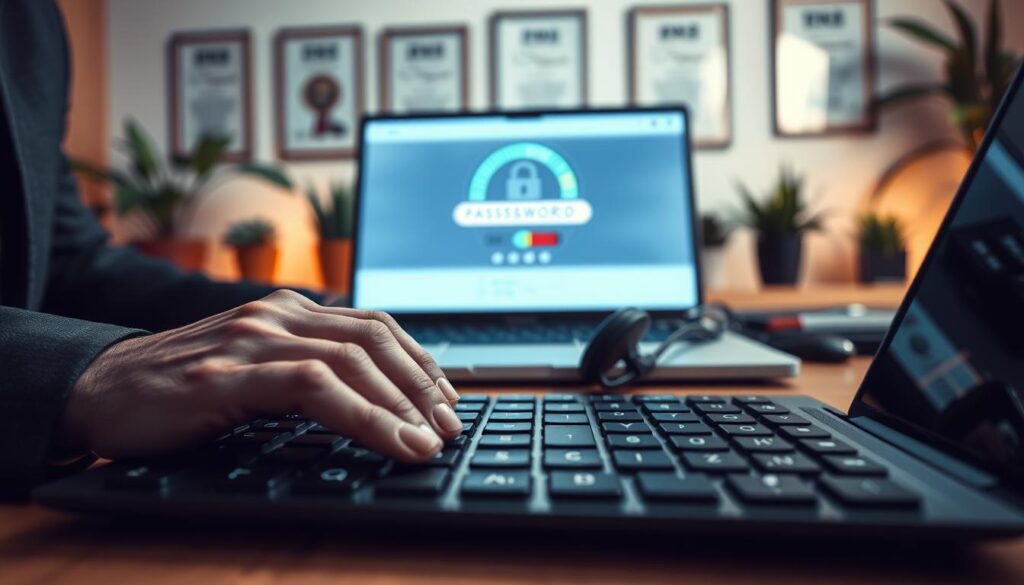
A good password has length, complexity, and unpredictability. Aim for at least twelve characters. Mix uppercase, lowercase, numbers, and symbols.
Avoid words in the dictionary, birthdays, and simple substitutions. These are easy for attackers to guess.
Passphrases offer an easy alternative. Use four unrelated words to create a long and memorable secret. This resists brute-force cracking.
Use unique passwords for each account. This lowers the risk if one site gets breached.
Password managers help you avoid memorizing many passwords. Tools like 1Password, LastPass, Bitwarden, and Dashlane generate strong random passwords. They store them in an encrypted vault and sync across devices. Autofill speeds logins and reduces reuse.
Pick reputable password managers and set a strong master password. Also, enable two-factor authentication for added security. Bitwarden is a good open-source option for transparency. Always back up recovery keys and store them safely.
Change passwords safely by following a simple routine. Start with high-risk accounts like email, banking, and social media. Update each to a strong, unique password. Save them into your password manager. Always sign out on shared devices after changing passwords.
Never reuse old or weak passwords when updating. Waiting to change passwords after a breach leaves you exposed. Regularly review saved credentials in apps and browsers. Make sure your password manager holds the correct, current passwords.
| Topic | Action | Why it Matters |
|---|---|---|
| Length | Use 12+ characters or a four-word passphrase | Increases time and resources required to crack the password |
| Complexity | Combine upper/lowercase, numbers, symbols | Makes guessing attacks less effective |
| Uniqueness | Use different passwords per account | Limits damage from a single breach |
| Password Managers | Use 1Password, LastPass, Bitwarden, or Dashlane; enable 2FA | Generates and stores strong credentials securely |
| Recovery | Back up recovery keys and master password securely | Prevents lockout while keeping vault safe |
| Changing Routine | Update high-risk accounts immediately after notice of breach | Reduces exposure when protecting against cyber threats |
Enable Two-Factor Authentication
Two-factor authentication makes account security stronger by adding a second check along with a password. It links what a person knows with what they have or who they are. This extra step is one of the best online security tips for both users and organizations.
What is two-factor authentication?
Two-factor authentication (2FA) adds a second verification step to login processes. Common factors include a password, a code from an authenticator app, a hardware security key, or a fingerprint. Widely used tools include SMS codes, Google Authenticator, Microsoft Authenticator, Authy, YubiKey, and Feitian.
How to set it up
Start by opening the security settings for each account: Google, Microsoft, Apple ID, Facebook, and Amazon. Choose an authenticator app or hardware token instead of SMS when you can.
Also, set up backup options like printed codes, a second device, and a trusted phone number. Keep your recovery info updated to prevent lockouts.
If the service supports WebAuthn/FIDO2, enroll a security key by following the prompts in the security or two-step verification section. Test recovery methods right after setup.
Benefits of two-factor authentication
Using 2FA cuts the chance of someone taking over your account. It protects accounts even if passwords get leaked and meets many corporate cybersecurity rules. Groups like NIST suggest stronger authentication for sensitive systems.
Besides protection, 2FA helps users protect their privacy online. It secures your email, bank, and social accounts. This added layer gives users control and peace of mind about their digital identity.
| Factor Type | Examples | Strength |
|---|---|---|
| Something you know | Password, PIN | Base level; vulnerable to phishing and reuse |
| Something you have | Authenticator apps (Google Authenticator, Authy), SMS code, hardware keys (YubiKey) | Strong when using apps or hardware keys; SMS less secure |
| Something you are | Fingerprint, facial recognition | Convenient and strong when implemented correctly |
| Recommended setup | Authenticator app + backup codes + security key | Highest practical security for most users |
| Benefit for users | Reduced account takeover risk, compliance, privacy protection | Improves adherence to cybersecurity best practices |
Secure Your Home Network
Securing your home network starts with simple steps that lower risks for everyone in your household. Consistent actions support home network security and protect online information for family members and guests.
Change default router settings to block easy access points. Default admin passwords and SSIDs are public for many models, so changing them stops basic attacks.
Use a strong, unique admin password. Rename the network with a neutral SSID and disable remote management unless truly needed.
Keep firmware up to date by downloading updates from manufacturers like Netgear, TP-Link, Asus, or Linksys. Firmware updates fix security holes attackers use.
Check your router interface or vendor support pages regularly for new updates.
Change Default Router Settings
Set the admin username and password to something hard to guess. Avoid birthdays, common phrases, or simple patterns.
Turn off Universal Plug and Play (UPnP) if not needed. Consider changing the router’s default management port for better security.
Creating a Guest Network
Give visitors a separate guest SSID to keep their phones and IoT devices away from your main devices and shared drives. This limits risks and stops threats from spreading across the network.
Enable client isolation on the guest network when possible. Use temporary passwords that expire or change them often for better security.
Importance of WPA3 Encryption
Use modern wireless security standards to protect your network traffic. WPA3 offers strong encryption and better defense against brute-force attacks.
If WPA3 is unavailable, use WPA2-AES at minimum. Check devices to ensure they support WPA3 before enforcing it.
Update or replace older hardware when you can. This improves long-term web security and protection of your online data.
| Action | Why It Matters | Practical Tip |
|---|---|---|
| Change admin password and SSID | Prevents attackers using default credentials | Choose a 12+ character passphrase and a neutral SSID |
| Disable remote management & UPnP | Reduces external attack surface | Only enable when needed and restrict by IP if possible |
| Enable guest network with client isolation | Keeps visitor devices separate from main devices | Set a temporary password and change monthly |
| Update firmware regularly | Patches security flaws from vendors like Netgear and Asus | Check vendor pages quarterly or enable auto-update if offered |
| Enable WPA3 or WPA2-AES | Improves encryption and resists brute-force attacks | Replace unsupported routers to adopt WPA3 |
Update Software Regularly
Keeping operating systems, apps, and device firmware current is a simple step with big impact. Patches repair security holes attackers use to break into systems. Delaying updates leaves phones, laptops, and routers open to threats like ransomware and data theft.
Why updates matter
Software updates fix vulnerabilities found after release. Ransomware outbreaks show how fast attackers use unpatched flaws. Regular updates reduce risk and protect data across personal and business devices.
How to enable automatic updates
Windows 10 and 11 have Windows Update in Settings where you can set automatic updates and restart times. On macOS, use Software Update in System Preferences to enable auto-install for macOS and apps. iOS and Android offer automatic app and system updates under App Store or Google Play and System updates.
For browsers like Chrome, Firefox, and Edge, enable background updates or set updates on startup. This keeps extensions and the browser engine patched and secure.
Best practices for software management
Inventory devices and applications to know what needs patching. Prioritize critical and internet-facing systems when scheduling updates. Use trusted sources like Microsoft, Apple, Google Play, and official vendor sites for downloads.
Avoid pirated software since it often carries malware that harms cybersecurity. For enterprises, use patch management tools and plan maintenance windows to update without disrupting work. Schedule restarts during low-use hours and test patches on a small group before a wide rollout.
These steps make updates smoother. They also help improve overall online security for teams and individual users.
Be Cautious with Public Wi-Fi
Using free networks in coffee shops, airports, hotels, and libraries can save time but also brings real risks. Readers should follow clear online security tips to stay safer. These tips reduce exposure to attacks on unprotected connections.
Risks of Using Public Wi-Fi
Open networks allow man-in-the-middle attacks where attackers intercept traffic between devices and websites. Rogue hotspots copy real networks to trick users into connecting and steal credentials. Eavesdropping tools help attackers read unencrypted data, exposing logins and private messages.
Common threat locations include coffee shops, airport lounges, hotel lobbies, and conference centers. Assuming convenience means safety may lead to stolen credentials and compromised accounts.
Safe Browsing Practices
Avoid sensitive transactions like banking or shopping on open networks. Use only HTTPS sites and confirm the padlock icon in your browser before logging in. Always verify hotspot names with staff to avoid fake networks.
Turn off automatic network connections and disable file sharing on your device. When possible, use cellular data for passwords, payments, or medical accounts. These simple tips help reduce the chance of data theft.
VPNs: An Extra Layer of Security
Virtual Private Networks encrypt traffic between your device and the VPN server. Providers like ExpressVPN, NordVPN, ProtonVPN, and Windscribe create secure tunnels that hide activity from attackers.
VPNs protect data in transit but don’t stop phishing or malware on infected devices. Choose reputable providers with no-logs policies. Check provider jurisdiction and privacy practices before trusting any service.
| What to Do | Why It Helps | Practical Tip |
|---|---|---|
| Use a reputable VPN | Encrypts traffic and masks IP address | Test providers like NordVPN or ProtonVPN and read audit reports |
| Stick to HTTPS | Protects data between browser and site | Look for the padlock and use browser HTTPS-only mode |
| Verify hotspot names | Reduces chance of connecting to rogue networks | Ask staff for the exact network name before connecting |
| Disable auto-join | Prevents accidental connections to unsafe networks | Turn off automatic Wi-Fi in system settings |
| Use cellular for sensitive tasks | Mobile networks are usually more secure than open Wi‑Fi | Enable mobile hotspot or use mobile data for banking |
Recognize Phishing Attempts
Phishing is a top method criminals use to steal login and financial information. Readers get practical tips to identify deception in emails, texts, and calls. Clear steps guide users to spot phishing before harm happens.
What is Phishing?
Phishing is a scam where attackers pretend to be trusted people to get sensitive data. They use email, SMS, calls, and fake websites to trick victims into sharing passwords or bank details.
Special types include spear-phishing, targeting specific people, and business email compromise, which impersonates executives or vendors.
Signs of a Phishing Email
Phishing messages often demand urgent action, like threats to close accounts. Errors in spelling or grammar can be a warning. Sender addresses might look real but usually have small changes.
Links and attachments may lead to harmful sites or downloads. When unsure, hover over links to check their destination.
- Unexpected urgency or threats in the subject or body
- Generic greetings like “Dear customer” instead of a real name
- Sender address that resembles a legitimate domain but has small changes
- Hover links to inspect the destination before clicking
- Unsolicited attachments or requests for credentials
Check full email headers to track where messages come from. Use sandboxing and preview links safely to avoid risk.
How to Report Phishing
Reporting phishing blocks scammers and helps protect others. Gmail and Outlook offer built-in tools to report phishing emails. Forward suspicious messages to the fake sender’s real abuse email if possible.
For big losses, file a complaint with the Federal Trade Commission and the FBI’s Internet Crime Complaint Center (IC3). Inform your workplace IT team to warn others and improve filters.
Use browser tools and security plugins to report harmful sites. These actions help fight cyber threats and share scam information across the community.
Use Secure Connections
Connecting to websites over encrypted links helps protect personal data from eavesdroppers. Readers should look for simple browser signs. They should adopt habits that reduce exposure to unsecured pages.
These online security tips cut risk when shopping, banking, or logging into accounts.
Identifying secure sites
One easy check is the address bar. A URL that begins with HTTPS and a padlock icon shows an encrypted channel.
If a site lacks that padlock, users should avoid entering passwords or payment details.
For unfamiliar sites, inspect the certificate details in the browser. Browsers warn if a certificate is expired, mismatched, or untrusted.
Treat warnings seriously and leave any site that shows certificate errors.
Why SSL certificates matter
SSL certificates, often called TLS certificates, encrypt data and help confirm a site’s identity. Certificate authorities like Let’s Encrypt, DigiCert, and Sectigo provide trusted certificates.
Sites can enforce secure connections by implementing HSTS. This tells browsers to always use HTTPS and stops some downgrade attacks.
Proper SSL certificates paired with HSTS make secure connections more reliable.
Steering clear of HTTP pages
HTTP sends data in plaintext. Typing personal or financial info on those pages risks interception.
Bookmark trusted sites that use HTTPS to avoid mistyped addresses leading to unsecured copies.
Use browser features that prefer HTTPS. Modern browsers upgrade connections when possible.
Choose reputable extensions that force HTTPS only on verified domains if an extension is needed.
Educate Yourself and Others
Learning about online risks helps people act with confidence. Checking reliable guides and using simple routines lowers exposure. Use short sessions and clear materials to help learning stick.
Recommended online security resources include trusted government and expert sites with timely guidance. CISA and the Federal Trade Commission offer practical advice. The Electronic Frontier Foundation explains privacy rights.
Security writers like Brian Krebs and researcher Troy Hunt provide deep analysis and breach checks. Vendor blogs from Microsoft, Google, and Apple share platform-specific tips. Subscribing to official bank and service pages helps users get key alerts.
Small groups learn faster with hands-on sessions. Organizing training for businesses or community groups works best when focusing on one skill. Demonstrations about phishing, password managers, two-factor setup, and updates make concepts memorable.
Free materials from CISA and NIST offer lesson plans and printable checklists. Practical drills help teams adopt cybersecurity best practices and test response steps.
Families benefit from clear, repeatable rules. Teaching seniors and youth to spot scams and set safe defaults helps protect devices. Use parental controls when needed, then review social network privacy settings together.
Create a family security checklist with passwords, recovery contacts, and actions after a possible compromise. Regular talks about online privacy build healthy habits for everyone.
Short, consistent training plus curated tips and trusted resources creates a strong routine. Practice and reminders reinforce good habits. Encourage members to subscribe to vendor and expert updates to stay current.
Monitor Your Accounts
Regular account checks are an easy way to boost online security. People who watch their accounts spot unusual activity fast. This habit helps protect data and fights cyber threats.
Setting Up Account Alerts
Turn on email and SMS alerts for sign-ins, password changes, and big transactions on banks, credit cards, Google, Apple, and Microsoft accounts. Alerts warn you quickly about unauthorized access. Early detection cuts losses and helps with fast response.
Regularly Checking Financial Statements
Check your bank and credit card statements monthly. Verify each transaction and report unfamiliar charges immediately.
Get free annual credit reports from AnnualCreditReport.com. Review them for new accounts or inquiries to catch possible fraud. These steps are key to monitoring accounts.
Using Identity Theft Protection Services
Look into services like Experian IdentityWorks, NortonLifeLock, and PrivacyGuard. They offer credit monitoring, dark web scans, and help with identity recovery. Free steps work too: place fraud alerts or credit freezes with Equifax, Experian, and TransUnion.
Paid plans differ in features and price. People should weigh costs against their risks and other security actions taken online.
Stay Informed on Cyber Threats
Keeping up with new risks is key to staying safe online. Experts share tips and security advice regularly. This helps people avoid surprises from new threats.
Follow Reputable Security Blogs
Trusted sources like Krebs on Security and Schneier on Security explain vulnerabilities clearly. Microsoft Secure Blog and Google Security Blog share breach updates and advice. Cisco and Palo Alto Networks offer detailed technical info. These help readers follow strong cybersecurity practices.
Subscribe to Security Newsletters
Email and RSS newsletters highlight important cyber news in short updates. Brian Krebs’ newsletter, CISA alerts, and SANS NewsBites keep readers informed easily. These summaries help people focus on what matters to their devices.
Join Online Security Communities
Joining groups like r/netsec on Reddit or ISACA chapters boosts security skills. Peers provide useful feedback and advice in these communities. However, users should always check tips against trusted sources before using them.