

Advertisements
More than 60% of Americans delay phone maintenance until a problem appears. Yet, simple upkeep can cut repair visits in half.
This guide offers clear mobile phone maintenance steps. Readers will spend less time troubleshooting and more time using their devices.
Mobile phone maintenance means cleaning, software updates, battery care, storage management, security, backups, and protective accessories. It covers both iPhone and Android basics.
The guide shows when to contact professional cellular repair services or seek mobile tech assistance. It helps users know their options.
Advertisements
The article explains how to run smartphone diagnostics using built-in tools and third-party apps. It provides practical care tips anyone in the United States can follow.
Readers learn repeatable actions to improve performance and extend device lifespan. These habits also keep data safe.
Key Takeaways
- Routine mobile phone maintenance prevents failures and cuts repair costs.
- Simple tips like cleaning, updates, and backups keep phones running well.
- Diagnostic and monitoring tools help spot issues early.
- iPhone and Android users can apply these basics before seeking help.
- Good habits extend battery life and protect data.
Importance of Mobile Phone Maintenance
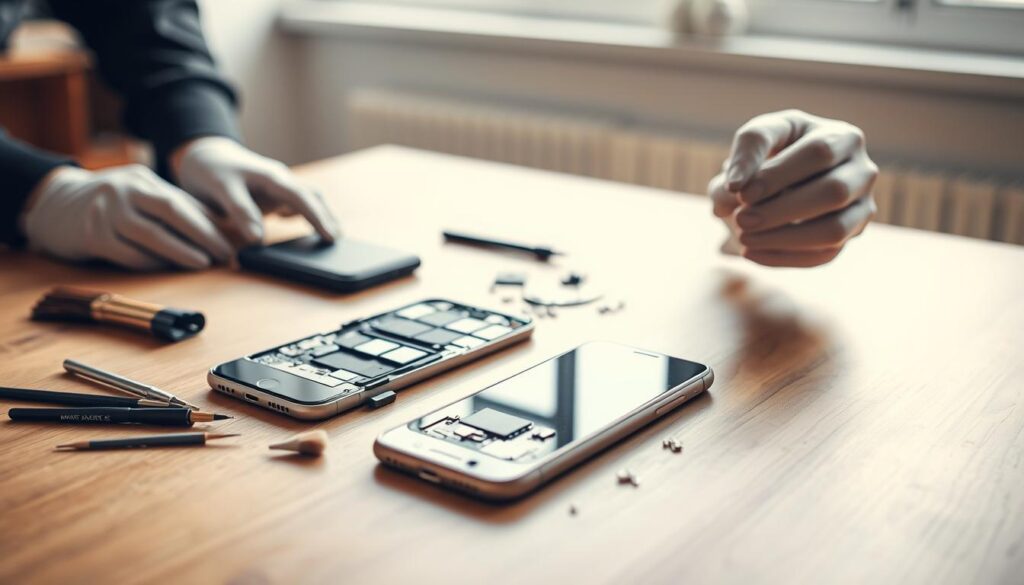
Keeping a smartphone in top shape takes small, steady steps. Simple habits reduce failures and avoid costly repairs. Brands like Apple and Samsung offer updates that improve security and performance.
Why Regular Maintenance is Essential
Regular checks prevent slowdowns and data loss. Cleaning ports, reviewing app permissions, and installing security patches help avoid crashes and overheating. Dust and outdated software add stress and shorten device life.
Updating Apple iOS or Google Android often fixes bugs. These updates lower repair shop visits. Basic care also keeps devices more secure.
Benefits of a Well-Maintained Device
A well-maintained phone has longer battery life and smoother apps. Managing storage and cleaning apps reduce freezes. This protects data and eases operating system upgrades.
Good care keeps resale value high. It also cuts the need for professional repairs. Following care tips helps a phone last for years with fewer issues.
Cleaning Your Smartphone: Best Practices
Proper cleaning keeps a phone hygienic and working well. Routine care helps prevent screen damage and port blockages.
These device care tips focus on safe steps anyone can follow. Pay attention to manufacturer guidelines and mobile device support options.

How to Clean the Screen Safely
Power off the device and unplug chargers before touching the screen. Use a soft microfiber cloth and wipe with light, circular motions.
This helps avoid pressure spots. For iPhone and Samsung models, follow Apple or Samsung cleaning guidance to protect the oleophobic coating.
Recommended Cleaning Products
Choose 70% isopropyl alcohol wipes or disinfectant wipes labeled safe for electronics. Lens-safe cleaners work well for removing fingerprints.
Avoid household cleaners with ammonia, bleach, or abrasive ingredients. These can strip coatings or damage displays.
Steps for Deeper Cleaning
Remove the case gently and clean crevices with a soft-bristled brush. You can also use compressed air at low pressure.
Clean charging ports with a non-metallic tool or soft brush. Never introduce liquids into ports. These steps match common mobile device support advice.
Preventing Dust and Grime Build-Up
Keep the phone in a case when not in use. Avoid placing it on dirty surfaces. Apply a screen protector that can be replaced if worn.
Schedule monthly wipe-downs for average users. Heavy users should clean weekly, especially if they carry their phone in pockets or work outdoors.
Follow manufacturer cleaning instructions to protect warranties like AppleCare, Google, or Samsung service terms. Good phone maintenance preserves performance, look, and value.
Managing Storage Space Efficiently
Keeping storage tidy helps a phone run faster. It also avoids unexpected errors. Readers learn checks and choices that save space.
The steps work for casual users and people who rely on their devices for work.
Identifying Large Files
Use built-in storage analyzers to spot space hogs. On iPhone, go to Settings > General > iPhone Storage. On Android, open Settings > Storage.
These tools show big videos, cached data, and large downloads. Third-party tools speed the process. Google Files highlights duplicates and large files.
Reviewing the list helps decide which items to remove or move.
Using Cloud Storage Options
Cloud services free local space and keep files accessible. Apple users get iCloud Photos and iCloud Drive. Android users can use Google Drive and Google Photos.
Microsoft OneDrive suits those who use Office a lot. Free tiers differ. iCloud offers 5GB, Google provides 15GB, and OneDrive gives 5GB.
Paid plans expand storage. Enabling optimized storage on iPhone reduces local photo copies. High-quality uploads in Google Photos reduce space on Android.
Uninstalling Unused Apps
Review app usage before removing anything. On iOS, offload unused apps to keep user data while deleting the app itself. On Android, clear app caches and uninstall rarely opened apps.
Removing unused apps cuts background activity and improves battery life. Setting apps to auto-delete old messages keeps storage fresh without much effort.
| Action | Where to Find It | Benefit |
|---|---|---|
| Check built-in storage analyzer | iPhone: Settings > General > iPhone Storage Android: Settings > Storage |
Identifies large files, caches, and recommendations |
| Use Google Files or similar | Google Files app (Android) or cross-platform cleaners | Finds duplicates and large downloads quickly |
| Enable optimized storage / high-quality uploads | iCloud settings on iPhone; Google Photos settings on Android | Saves local space while keeping cloud access |
| Offload or uninstall unused apps | iOS Offload feature; Android app settings | Frees space and reduces background resource use |
| Move media to computer or NAS | macOS Finder, Windows Explorer, network-attached storage apps | Long-term archive without consuming phone storage |
Practical maintenance ties into broader care. Pair these steps with routine checks from iPhone or Android guides. Regular attention keeps the device responsive and extends its life.
Updating Your Smartphone Regularly
Keeping your phone’s software updated protects your data, fixes bugs, and adds useful features. Regular updates are key to phone care. They also reduce security risks and keep apps working well with services like Gmail, Zoom, and Microsoft Teams.
iOS and Android handle updates differently. Apple puts iOS updates under Settings > General > Software Update. Google and Android brands put system updates in Settings > System or their own update app.
App stores manage updates for individual apps. Before a major OS update, back up your device to iCloud or Google Drive. Charge the phone or plug it in, and use Wi-Fi for large downloads.
For work devices, wait a short time after release. This lets initial bugs surface before you update.
How to enable automatic updates
- On iPhone, turn on Automatic Updates in Settings > General > Software Update. Enable App Store auto-updates in Settings > App Store.
- On Android, enable system updates in Settings > System > Advanced > System update or the maker’s update tool. For apps, use Google Play Store > profile > Settings > Network preferences to allow auto-updates.
- Make sure automatic updates use Wi-Fi only if you want to save mobile data.
How to check for updates manually
- On iPhone, go to Settings > General > Software Update. For apps, open the App Store and pull down the Updates list.
- On Android, check Settings > System > System update or OEM update entry. Update apps via Google Play > Manage apps & device > Updates available.
- Check for updates before travel, presentations, or heavy phone use to avoid interruptions.
If an update fails or your device acts strangely, use smartphone diagnostics or mobile tech help. Apple Support, Google Help, or authorized service centers can fix issues and restore your phone.
| Task | iOS Steps | Android Steps | Best Practice |
|---|---|---|---|
| Enable automatic OS updates | Settings > General > Software Update > Automatic Updates | Settings > System > Advanced > System update or OEM update tool | Enable only on Wi‑Fi for large downloads |
| Enable app auto-updates | Settings > App Store > App Updates | Google Play > Profile > Settings > Network preferences > Auto-update apps | Allow on Wi‑Fi to save data |
| Manual update check | Settings > General > Software Update; App Store updates list | Settings > System > System update; Play Store > Manage apps & device | Check before important events |
| Troubleshooting failed update | Use iTunes/Finder for recovery or contact Apple Support | Use recovery mode, factory tools, or contact Google/phone maker support | Run smartphone diagnostics or seek mobile tech assistance |
| Pre-update checklist | iCloud backup, battery charged, Wi‑Fi connected | Google backup, sufficient battery, Wi‑Fi connected | Back up and read release notes before installing |
Battery Care and Longevity
Proper battery care greatly impacts mobile phone maintenance. Small habits protect capacity and keep devices running well for years.
The tips below help iPhone and Android users get the most from their batteries while avoiding common problems.
Best Charging Practices
Use certified chargers like Apple MFi, USB-IF adapters, or the original charger that came with your phone. Avoid charging in very hot or cold conditions.
Modern lithium-ion batteries handle partial charges better than repeated full cycles. Do not often let the battery drop to 0% or stay at 100% for long.
Turn on optimized charging features on iPhone, Samsung, and Google Pixel devices to slow top-off charging and reduce battery wear.
Recognizing Battery Issues
Watch for quick battery drain, sudden shutdowns, or very slow charging. Check battery health in iPhone Settings or Android battery stats for capacity loss signs.
A bulging case, high heat, or strange smells signal a safety risk. Stop using the device if swelling or overheating appears.
Seek professional help from manufacturer service centers or trusted repair providers to safely assess and replace faulty batteries.
Tips for Extending Battery Life
Enable battery saver modes when needed. Reduce screen brightness and shorten screen timeout to save power.
Turn off Bluetooth, GPS, and sensors when not in use. Disable background app refresh for apps that do not need it to reduce battery drain.
Keep your operating system and apps updated for better energy use. When battery health drops, choose genuine replacements from trusted sources for safety and quality.
Optimizing App Performance
Keeping apps running well is key to mobile phone care. Small changes in background activity and notifications can improve performance. These tips help users get the best from iPhone and Android devices while keeping support options open.
Managing Background App Activity
iOS uses Background App Refresh to fetch new data for apps. To save power, go to Settings > General > Background App Refresh. Turn it off for apps that don’t need updates often.
On Android, open Settings > Apps & notifications > See all apps. Select an app, then tap Battery to limit background activity or force stop the app if needed.
Using Low Power Mode on iPhone and Battery Saver on Android reduces background tasks automatically. Allow background data only for essential apps. These steps save battery and improve phone speed.
Disabling Unused Notifications
Notification overload can slow down your phone and waste battery power. On iOS, use Settings > Notifications to silence social feeds and promotions. On Android, manage alerts in Settings > Apps & notifications.
Turning on Do Not Disturb during work or sleep blocks interruptions. Silencing unneeded alerts helps you focus and stops apps from draining resources. Check your notifications settings often to keep control.
When to Update Apps
App updates fix bugs and improve speed. Install updates regularly to keep apps stable and secure. Before big updates, read the changelog and reviews to check for issues on your device.
If an update causes problems, rolling back is not always possible. Reinstall an older stable version from backup or contact support for help. Good update habits lead to quicker fixes for common issues.
You can also clear app caches on Android to free space. On iOS, offload unused apps to save storage. Reinstall apps that act up to remove corrupt data. These actions help keep your phone working well over time.
Protecting Your Device with a Case
A durable case is one of the simplest steps in mobile phone maintenance. The right case keeps a device safe from drops and daily wear.
Choosing between protection and style affects long-term device care tips. It can also reduce visits to phone repair services.
Types of Phone Cases Available
Slim or skinny cases add minimal bulk while guarding against scratches. They fit users who want basic protection and value the phone’s original look.
Rugged or armor cases, like those from OtterBox and UAG, are built for drops and tough conditions. They absorb impacts with layers of polycarbonate and TPU.
Wallet and folio cases protect the screen and offer card slots. They provide practical storage for IDs or credit cards.
Bumper cases defend edges and corners but leave the back visible. Clear cases show the design and often use silicone or polycarbonate for flexibility.
Materials matter: silicone feels grippy, TPU balances flexibility and strength, polycarbonate is rigid, and leather adds a premium look. Match material to lifestyle for better device care.
Benefits of Using a Screen Protector
Tempered glass protectors resist drops and maintain touch responsiveness. They shield the display from cracks.
Film protectors prevent scratches and reduce glare. Privacy films limit side views, which is useful in crowded spaces.
Certified screen protectors lower the chance of costly repairs. Fewer cracked screens mean fewer trips to phone repair services and higher resale value.
Keep protective accessories clean. Replace screen protectors when scratched or cracked. Wash cases with mild soap and dry before reattaching to prevent debris buildup that can scratch surfaces.
Syncing and Backing Up Data
Keeping data safe is a key part of mobile phone care. Users should make a simple backup routine. This helps avoid data loss and reduces downtime if the device fails or is replaced.
Common backup methods include cloud services, local copies, and third-party tools. Each fits different needs for storage size, privacy, and easy restore.
Popular Backup Methods
iCloud backs up iPhones daily when the phone is plugged in, locked, and on Wi‑Fi. It is a key step in iPhone care.
Google Backup syncs contacts, app data, and Drive files for Android devices. Android phone care starts by confirming backups before resetting.
Third-party services like Dropbox and OneDrive add access across platforms. Local backups use Finder or iTunes on macOS, and Android File Transfer or OEM tools on Windows. Encrypt backups that include passwords or sensitive info.
How to Sync Across Devices
Apple’s iCloud and iCloud Keychain sync photos, contacts, messages, and Safari across iPhone, iPad, and Mac. This keeps users in sync on multiple Apple devices.
Android users rely on Google account sync for contacts, calendars, and app settings. Cross-platform access improves with email and calendar syncing via Exchange, Google Workspace, or Microsoft 365.
For teams, account-based sync keeps files and calendars consistent. Device support teams should list accounts to enable and check sync status during setup.
Restoring Data After a Reset
Always make a full backup before a factory reset. Restoring without a verified backup risks losing photos, messages, and app settings forever.
After resetting, signing in to Apple ID or Google account restores apps and many settings automatically. Some apps block cloud backup of internal data, so users must reconfigure those apps and sign in again.
Encrypted backups need the password used when backing up. If the password is lost, the encrypted data cannot be accessed. Testing a restore on a spare device or virtual machine helps confirm the backup works.
| Backup Method | Typical Contents | Best For | Notes |
|---|---|---|---|
| iCloud | Photos, messages, app settings, device settings | iPhone and Apple ecosystem users | Automatic daily backups when plugged, locked, on Wi‑Fi; fits iPhone maintenance guide steps |
| Google Backup | Contacts, app data, Drive files, device settings | Android users and cross-platform access | Built into Android; useful for Android phone fixing and quick restores |
| Finder / iTunes | Full device images, app media, encrypted passwords | Users who need local control and encrypted archives | Allows encrypted local backups; requires computer and periodic verification |
| Dropbox / OneDrive | Photos, documents, selective app exports | Cross-platform sharing and extra redundancy | Good for offsite copies; pair with cloud or local backups for full coverage |
| OEM Utilities (Samsung Smart Switch, etc.) | Device settings, media, some app data | Device-to-device migration and targeted restores | Useful during upgrades; check which app data is supported |
Monitoring Your Phone’s Health
Keeping track of a device’s health helps avoid surprises and makes it last longer. Routine checks guide phone care. They also build user confidence when apps or calls act strangely.
A mix of built-in checks and trusted third-party tools reveals battery wear, thermal trends, storage issues, and sensor faults.
Understanding Phone Diagnostics
Diagnostics check battery health, CPU and GPU use, storage, thermal status, network strength, and sensor function. These readings show when a battery is wearing down or when chips heat up from tasks. Built-in tools from Apple and Google catch many problems early with basic logs.
Deeper diagnostics find failing hardware before total breakdown. Frequent crashes, restarts, or fast battery drain often mean software conflicts or old parts. Watching trends matters more than single data points.
Tools and Apps for Monitoring Performance
Start with built-in options: iOS offers Battery Health and Diagnostic & Usage logs. Android shows developer options and Safe Mode to isolate app problems. OEM apps like Samsung Members and Google’s Device Health run hardware checks for specific models.
Third-party tools add to these checks. AccuBattery and GSam Battery Monitor track Android charge cycles and capacity. CoconutBattery lets Mac users see iPhone battery stats. Geekbench tests CPU and GPU speed. Speedtest checks cellular and Wi‑Fi performance.
Key points to note: Battery health below 80% usually means it’s time to plan for replacement. High temperatures hint at background processes or failing cooling. Frequent app crashes suggest software conflicts. Get tech help if hardware faults appear or fixes fail.
Protect your privacy by giving diagnostic apps only the permissions they need. Download apps from Apple App Store or Google Play. Trusted developers lower risks and offer clear, accurate smartphone diagnostics.
Troubleshooting Common Issues
Every smartphone will face issues sometimes. A clear troubleshooting path helps users fix most problems. It also avoids data loss or warranty voids.
The guide below covers slow performance, network problems, and safe restart methods. It includes tips for mobile phone care and Android fixes.
Dealing with Slow Performance
Start by clearing app caches. Remove apps that you rarely use. This frees storage and lowers background activity.
Keep your operating system and apps updated. Updates fix bugs and improve speed. On Android, disabling animations helps the UI feel faster.
If your phone stays slow, back up important data. A factory reset can help but use it only as a last option.
Regular maintenance lowers the chance of slowdowns happening again.
Fixing Connection Problems
Check if Airplane Mode is on. Toggle Wi‑Fi or Bluetooth off and on to refresh connections. Forget a network and reconnect with the correct password.
To reset network settings on iOS, go to Settings > General > Reset > Reset Network Settings. Android users find this option under System or Network settings.
Updating carrier settings can fix voice and data problems. For weak cellular signals, try the SIM card in another phone.
If problems continue, contact your carrier for help.
Restarting Your Device Effectively
Start with a soft restart. Turn your phone off, wait a few seconds, then turn it on again. This fixes many temporary glitches.
Use a forced restart only if the phone is unresponsive. Follow your phone model’s specific button steps to avoid damage.
Avoid hard resets unless a technician or manufacturer recommends them. Booting into safe mode helps find bad third-party apps.
If the phone runs better in safe mode, uninstall recent or suspicious apps to stabilize it.
When to Seek Professional Help
If problems persist, check for physical damage or swollen batteries. Hardware issues require authorized repair or manufacturer support.
Getting expert help also protects your warranty and device safety.
Security Tips for Your Smartphone
Smartphone security protects personal data and apps from theft, fraud, and malware. Readers should develop simple habits to guard their accounts, devices, and sensitive files. These steps are part of regular phone care and work well with expert help when needed.
Importance of Strong Passwords
Use long, unique passcodes for your device and main accounts like Apple ID or Google. Biometric options such as Face ID or Touch ID add convenience without lowering security. Password managers like 1Password, LastPass, or Bitwarden store complex passwords safely and make it easy to use different ones for each service.
Using Two-Factor Authentication
Turn on two-factor authentication for email, financial apps, and social networks to stop unauthorized access. Apps like Google Authenticator or Authy provide stronger protection than SMS codes. Hardware security keys offer extra safety for important accounts when possible.
Keeping Your Device Clean from Malware
Install apps only from trusted sources like the App Store or Google Play. Always check permissions before granting access. Avoid sideloading APK files unless you fully trust the source.
Keep your operating system and apps up to date to fix security gaps. High-risk users may want mobile antivirus software from trusted brands and should run scans regularly.
Handling a Compromised Device
If your device seems compromised, disconnect from the internet immediately. Change important passwords using a secure device. Android users should scan for malware and consider a factory reset if needed.
For lost or stolen phones, use Find My iPhone or Find My Device to locate, lock, or erase your phone remotely.
When to Contact Professionals
If breaches persist, if you lose data, or if attacks seem advanced, seek professional help. Certified mobile device support teams can help with forensic recovery and safe restoration. Cellular repair services offer diagnostics and data recovery when software fixes and hardware problems complicate recovery.
Conclusion: A Few Final Maintenance Tips
Keeping a smartphone healthy means simple and steady care. Regular cleaning and smart storage management are key. Also, timely software updates and proper battery habits help your phone last longer.
App optimization, protective cases, routine backups, diagnostics, and strong security reduce repair needs. These tips work together to keep your phone performing well and prevent problems.
Setting a Maintenance Schedule
Create a short checklist and set calendar reminders. Daily tasks include closing unused apps and wiping the screen quickly. Weekly, delete junk files, check notifications, and clear app caches.
Monthly, verify backups, clean the case and ports, and review storage and battery health. Before big events or OS updates, confirm backups and free up space. Using reminders or task apps helps keep maintenance on track.
Staying Informed on New Features
Stay updated by following official sources like Apple Support, Google Android Central, and Samsung, Google, and Apple blogs. Subscribe to tech outlets like The Verge, Wired, and CNET for device care tips and repair news.
Timely info lets users apply safety patches, learn new tools, and spot recalls that need tech help. Balance DIY fixes with professional service for complex repairs. Document serial numbers, enable protection plans, and consider insurance to ease support and speed repairs.
These steps give peace of mind and extend phone life across the United States.